When a task is assigned to your user in XTM, you will receive an email from XTM informing you that there is a new task available:
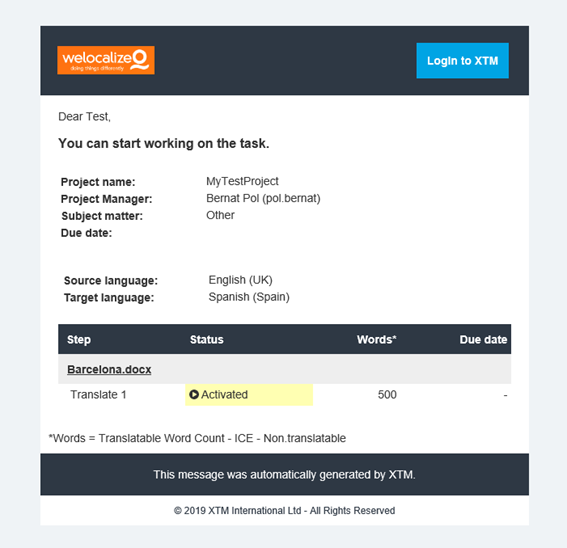
Click on Login to XTM to access the tool. You will need to enter your login credentials provided to you by your Project Manager, and WelocalizeLS in the Company input box:

The first time you access XTM you will be required to configure your time zone:
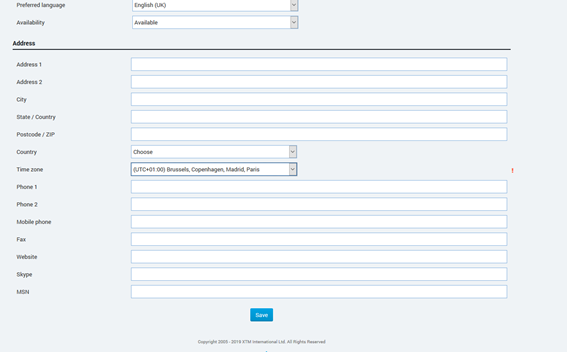
Once this is done, click on Save and then go to the top of the page and click on Tasks. The next time you log in, you will not need to do this step and the tasks list will open directly:
